TRELLOEXPORT · USER GUIDE
Your Trello boards.
In the format you need.
A practical guide to exporting boards, lists and cards with the TrelloExport Chrome extension. Start with your first download, then tailor the data and presentation to your workflow.
Based on TrelloExport 1.9.83 · Screenshots from the extension running on Trello
01 · GET STARTED
Your first export
TrelloExport adds its own export command to Trello. Sign in to Trello in Chrome and open a board you can access. The extension uses your existing Trello session; you do not need to enter an API key.
- Install TrelloExport from the Chrome Web Store. If Trello was already open, reload the board after installation.
- Open the board menu using the three dots at the top right of the board.
- Choose “Print, export, and share” and then TrelloExport. Trello’s wording depends on your language and interface version. Older versions place this under “More” or “Print and Export”.
- Choose Excel in “Export to” and “Current Board” in “Type of export”. Leave the filter empty for an unfiltered export.
- Click Export and keep the Trello tab open while the extension loads the data. Chrome downloads the file when it is ready.
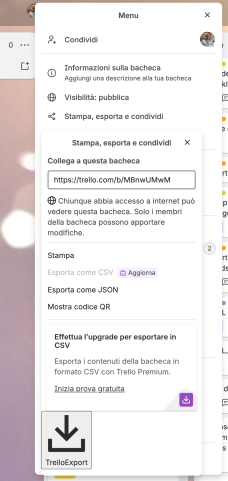
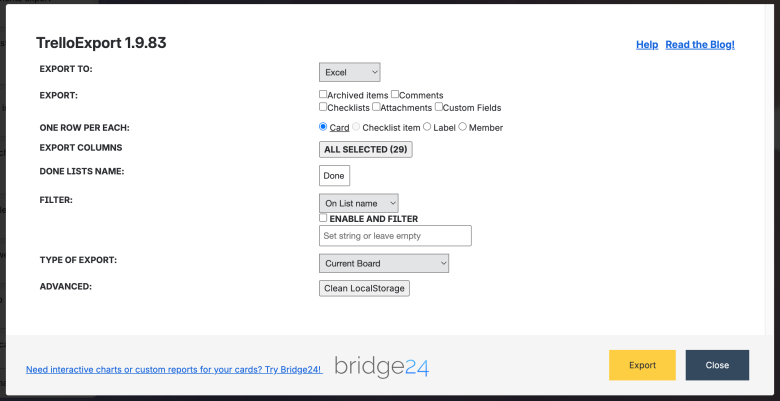
Close, the × button or Escape dismisses the dialog. Clicking Export closes the dialog and starts loading; its disappearance does not mean the download is already finished. Exporting reads your board data without moving or editing cards.
02 · OUTPUT
Choose a format
Use the Export to dropdown to choose one of five formats. A spreadsheet and a document present the same board differently; select the format before adjusting the options underneath.
| Format | Best for | What you get |
|---|---|---|
| Excel · .xlsx | Reporting and analysis | A workbook with selectable columns and one row per card, checklist item, label or member. Archived items have a separate worksheet when included. |
| CSV · .csv | Import into spreadsheets or other tools | A text table using the spreadsheet column and row options. Archived rows can be included in the same file. |
| Markdown · .md | Notes and text documentation | A document organised by board, list and card, with optional card creation information and attachment image links. |
| HTML · .html | Readable reports and publishing | A web document rendered with a Twig template and a stylesheet. Choose a built-in layout or load a template set. |
| OPML · .opml | Outliners and compatible mind mapping tools | An XML outline with boards, lists and cards, plus supported details as nested entries or attributes. The importing app controls how these appear. |
Downloads use a timestamped name beginning with TrelloExport_. Look in Chrome’s Downloads if no “Save as” dialog appears. An export is a snapshot of the selected data, not a live connection or a Trello restore file.
03 · SCOPE
Export boards, lists or individual cards
Type of export decides where the data comes from. Wait for the selection controls to load before exporting.
- Current Board
- Export the board you are viewing, subject to the filter and archived-item setting.
- Select Lists in current Board
- Choose one or more lists from the selector that appears. Only cards in those lists are considered.
- Multiple Boards
- Choose one or more accessible boards. The extension loads the board choices from your Trello account, including available workspaces. Filters still apply to the selected boards.
- Select cards in a list
- First select one list. Wait for its cards to load, then select one or more cards from the second selector.
These are native multiple-selection lists: use ⌘ on macOS or Ctrl on Windows/Linux while clicking to choose separate entries; use Shift for a range. Make an explicit selection before clicking Export.
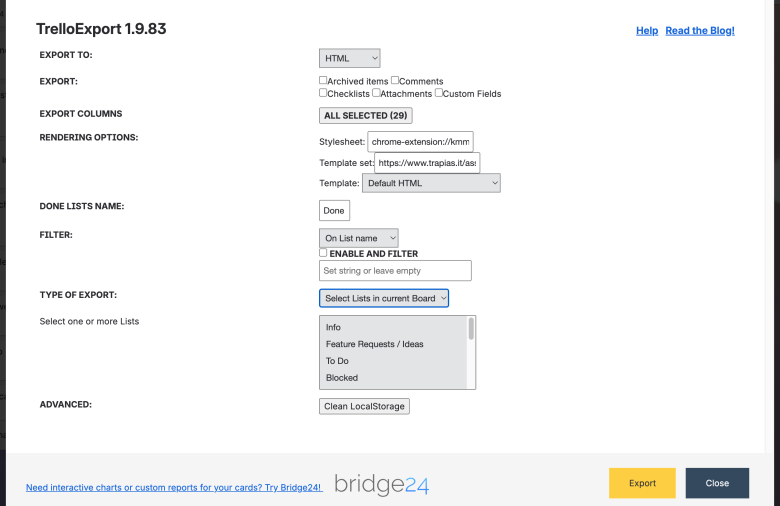
04 · CONTENT
Choose which data to include
The Export checkboxes control additional data. Enable only what you need: comments, checklist history and custom fields can require extra requests and make large exports slower.
- Archived items
- Include archived lists and cards in the chosen scope. Leave it unchecked for active items only. In Excel, archived items appear in “Archived lists and cards”.
- Comments
- Include card comments with the available author and date information. For spreadsheets, also keep the Comments column selected.
- Checklists
- Include checklists and their items. This also enables the “Checklist item” row option for Excel and CSV. Completion details depend on the history available from Trello.
- Attachments
- Include attachment information and URLs. This does not download every attached file into a backup folder. Private links can still require Trello access.
- Custom Fields
- Load the board’s custom field definitions and card values. In spreadsheets, confirm that the additional field columns are selected after enabling this option. For multiple boards, field definitions can differ: verify a sample or export boards separately when their schemas do not match.
The selected format determines how these details are displayed. HTML depends on its template; selecting a field does not force a custom template to render it. Empty source fields remain empty in the export.
05 · TABLES
Excel and CSV: rows and columns
One row per each
- Card: a compact report with each card’s members, labels and checklist details grouped into cells.
- Checklist item: repeat card information for each checklist item. Enable Checklists first. Additional columns cover checklist and item names, completion status, completion date and person, item due date, assigned member ID/name and item state.
- Label: repeat the card for its labels, using a singular Label column. Useful for grouping or counting by label.
- Member: repeat the card for its members, using a singular Member column. Useful for assignment reports.
Expanded layouts can produce several rows for one card. Count distinct card links or card numbers when you need a card count rather than a row count.
Export columns
Open the button beside Export columns and check the fields you want. Select all selects or clears the full set. The available columns change with the row layout and Custom Fields option.
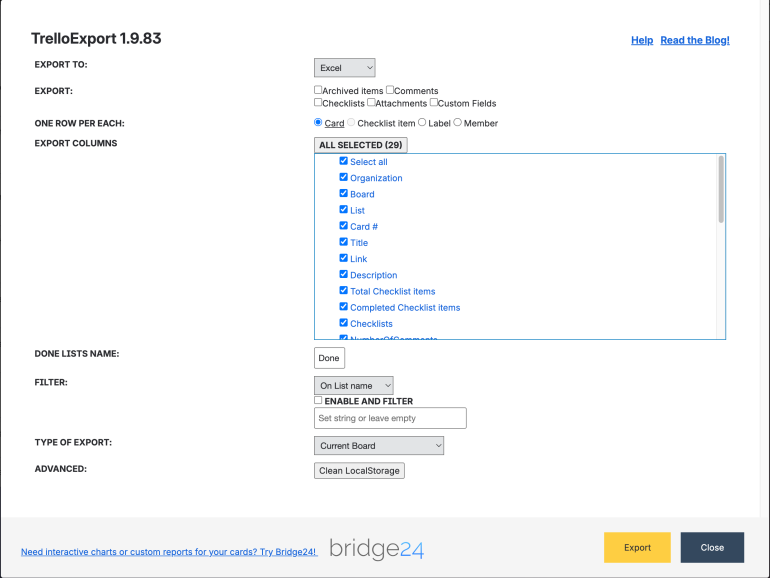
| Group | Columns and meaning |
|---|---|
| Location and identity | Organization (workspace), Board, List, Card #, Title and Link. |
| Card contents | Description, Total Checklist items, Completed Checklist items, Checklists, NumberOfComments, Comments, Attachments and Votes. |
| People and labels | Members and Labels, or the singular Member/Label in the corresponding expanded layout. |
| Dates and status | Created, CreatedBy, LastActivity, Start, Due and Due Complete (whether the due date is marked complete). |
| Completion history | Done, DoneBy and DoneTime, derived from moves into a matching Done list. See the completion settings below. |
| Time and points | Spent and Estimate for recognised Trello Plus data; Points Estimate and Points Consumed for recognised Scrum for Trello title notation. These are not general time tracking totals for every Power-Up. |
| Additional fields | Checklist item columns in checklist-row mode, and the board’s custom field names when Custom Fields is enabled. |
Two controls work together: keep the relevant checkbox enabled under Export and select its column. A selected Comments, Checklists or Attachments column alone does not enable that data.
Excel cells are limited to 32,767 characters, so exceptionally long descriptions or combined comments can be truncated. After opening the workbook, adjust column widths and enable Wrap Text. CSV is comma-separated UTF-8 text; import it explicitly with that delimiter and encoding if your spreadsheet’s regional defaults differ. CSV output flattens line breaks and replaces double quotation marks in cell text, so choose Excel or Markdown when preserving text formatting matters.
06 · REFINE
Filters and completion settings
Filter by list, label or card name
Select On List name, On Label name or On card name, then enter one or more comma-separated search terms. Matching is case-insensitive and checks whether the name contains the term. Leave the box empty to apply no name filter.
- Enable AND filter unchecked: accept a match for any term (OR). For example, list names containing
DoneorCompletedmatchDone,Completed. - Enable AND filter checked: require every term. A card-name filter
release,2026matches a title containing both words.
The dropdown selects one name category at a time; the text box is not a regular expression or a Trello search query. A filter narrows your chosen export scope. Cards without labels do not match a label-name filter.
Done lists name
Enter the list-name text used to recognise completion, such as Done or Done,Completed. Matching ignores case and uses contained text. Leaving the field empty falls back to Done.
The extension looks for moves into a matching list to derive Done (when), DoneBy (who moved it) and DoneTime (elapsed time from creation to completion, represented as an ISO-style duration). This is separate from Trello’s Due Complete flag. It is not a measurement of time spent in every list; missing or unavailable activity history can leave these values blank.
07 · DOCUMENTS
Markdown and OPML
Markdown
Choose Markdown for a text document with board, list and card headings. Enable Comments, Checklists and Attachments as needed. Two additional options appear:
- Export card info (created, createdby): include the card’s creation date and creator.
- Show attachment images: render recognised image attachments as inline Markdown images. Enable Attachments too. Other attachments remain links.
Open the downloaded .md file in a Markdown editor or viewer. Inline images reference attachment URLs rather than embedding the image files; access and network availability still matter.
OPML
Choose OPML to import the board’s hierarchy into a compatible outliner. Board → list → card forms the main structure; selected checklists, comments and attachments become additional outline entries. Card descriptions and available date/person information are stored as notes or attributes. Import support varies, so try one small list before exporting a large workspace.
08 · PRESENTATION
HTML reports and Twig templates
Choose HTML to reveal Rendering Options. Unlike a spreadsheet, the downloaded page’s layout and displayed fields are controlled by its Twig template.
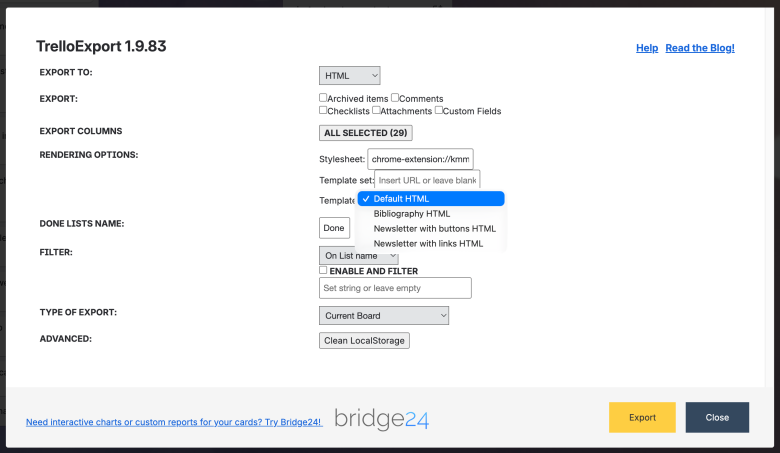
- Stylesheet
- The URL of the CSS used by the exported page. A template’s own CSS setting takes precedence when supplied. For a file you intend to share, use a publicly accessible HTTPS stylesheet.
- Template set
- The URL of a JSON template catalogue. The default is
https://www.trapias.it/assets/TrelloExport/templates.json. Change the field and move focus away to load the catalogue; wait for the template choices to update. Clear the field to use local templates in the current dialog. - Template
- Select the layout to use. Bundled choices are Default HTML, Bibliography HTML, Newsletter with buttons HTML and Newsletter with links HTML. Remote catalogues may provide different choices.
Default HTML is a general board report. Bibliography HTML is intended for reference collections and includes DOI linking. The two Newsletter layouts offer different link presentations. The screenshot shows the built-in choices, not a guarantee that every remote catalogue has the same contents.
Use your own template catalogue
Host a JSON file with a templates array. Each entry supplies a name, a publicly reachable Twig URL and a description; CSS is optional. Enter the JSON URL in Template set and select the loaded template.
{
  "templates": [
    {
      "name": "team-report",
      "description": "Team report",
      "url": "https://example.com/report.twig",
      "css": "https://example.com/report.css"
    }
  ]
}
Twig templates receive data.cards and data.renderSettings, including CSS and language. Use the extension’s existing templates as a starting point. Template and catalogue hosts must permit the browser to load them; a URL that displays in a tab may still be blocked as a cross-origin request.
09 · PREFERENCES
Saved settings and reset
TrelloExport remembers selected settings in the browser’s local storage for Trello: export format and type, Done list names, selected spreadsheet columns, the Custom Fields preference, template choices/catalogue and external CSS settings. Some preferences save as soon as you change them; others save when you click Export.
Do not assume that all checkboxes, filters or item selections persist. Review them each time, especially after switching board or export scope.
Advanced → Clean LocalStorage clears the extension’s saved preferences. Use it when an old column selection or template setting causes unexpected results, then close and reopen the dialog and configure your export again. It does not delete Trello boards or cards.
10 · PUT IT TO WORK
Three useful export recipes
A weekly status report
Choose Excel → Current Board → one row per Card. Keep List, Title, Link, Members, Labels, Due and Due Complete. Leave filters empty for the full picture, or filter list names to your active stages.
A checklist action register
Choose Excel or CSV, enable Checklists, then select one row per Checklist item. Keep the checklist item, state, due date and member columns alongside the card title and link. Select only the lists relevant to your team.
A readable project handover
Choose Markdown, enable Comments, Checklists and Attachments, and turn on card info. Include archived items only if needed. For a designed HTML report instead, select a template and verify its stylesheet and attachment links before sharing.
11 · HELP
Troubleshooting
TrelloExport is missing from the menu
Check that the extension is enabled in chrome://extensions and allowed to run on trello.com. Reload the Trello board after installing or updating it. Open the board menu, then the print/export submenu and allow a moment for the command to appear. Trello’s menus can change; the toolbar icon does not open the export dialog.
The export is slow or no file appears
Keep the tab open and wait for the download notification. Large boards and detailed comments/checklist history can take several minutes. The extension paginates card requests and retries some permission, rate-limit and timeout responses, but repeated failures can still stop an export. Try a small list with optional data disabled, then add options gradually. Check Chrome’s Downloads and confirm you are still signed in to Trello.
Rows, comments or fields are missing
Check scope, explicit board/list/card selections, filters and Archived items. For comments, checklists and attachments, enable both the data checkbox and relevant spreadsheet columns. For custom fields, enable Custom Fields and inspect the new column choices. Compare one known card with the export; blank fields or missing historic actions cannot be recreated by the extension.
Done dates differ from Trello’s completed status
Done fields use moves into lists matching Done lists name. Due Complete is a separate boolean. Check the configured list-name terms and whether the card has the relevant move history.
HTML is unstyled or the template list is empty
Check that the catalogue, Twig and CSS URLs are reachable and browser requests are permitted. Re-enter the Template set URL or clear it to use bundled templates in the current dialog. Select a template again. When sharing, prefer public HTTPS CSS over chrome-extension URLs. A template with its own CSS overrides the Stylesheet field.
Characters or columns look wrong in a spreadsheet
Import CSV as UTF-8 with a comma delimiter. Use Excel when multiline text matters. Increase column widths and turn on Wrap Text. A cell containing very long combined text may reach Excel’s 32,767-character limit. Dates use the browser’s locale in several outputs.
“Extension context invalidated” appears
The extension was updated or reloaded while the Trello tab was open. Refresh the Trello page and start the export again.
Need more help? Browse the Wiki or release notes. When reporting a problem, include the extension version, file format, export scope and enabled options, plus any error message. Remove private board data from screenshots and sample files.